
 Barça
 Peñarol
 Inter Miami
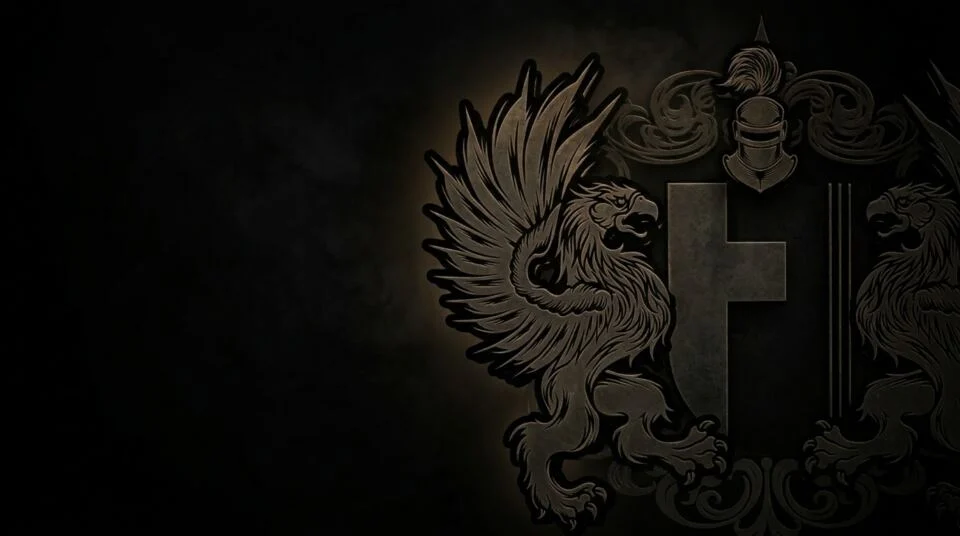
The crest of Mandatum now has a place on your screen. We are offering two official wallpapers of the Order, one made for phones and one for computers, free for the members of the Order.
For members of the Order. The full-resolution wallpapers are available only to members of the Order. To download them, subscribe to the Herald (free) and sign in with your organization email address. The images below are low-resolution previews.
Download
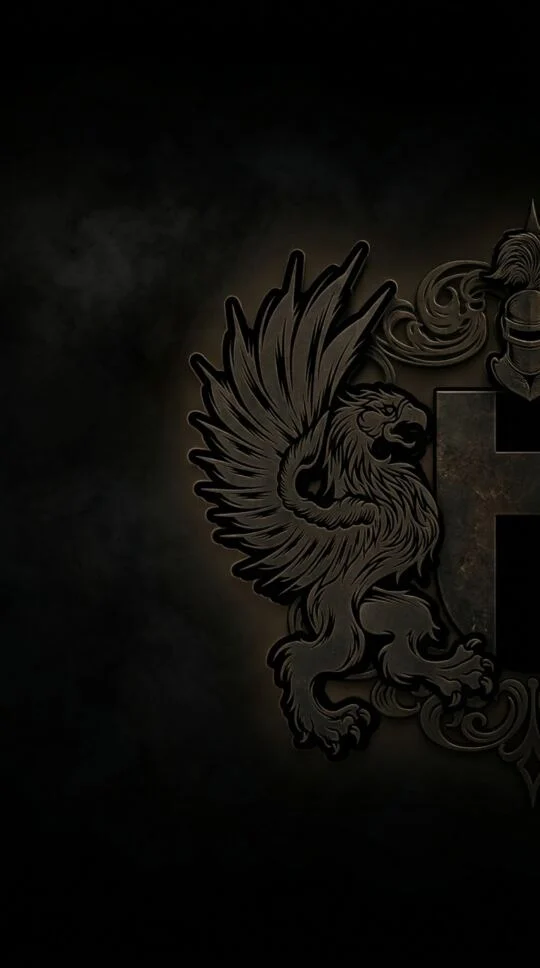
For phones · iPhone and Android

For computers · Windows, Mac and Linux
Tip. If the download only opens the image, press and hold it (phone) or right-click it (computer) and choose to save the image.
How to set it as your wallpaper
iPhone and iPad (iOS)1. Download the phone wallpaper and open it from the Photos app.
2. Tap the Share button, then choose Use as Wallpaper.
3. Move and zoom the image if you wish, then tap Add and choose Set as Wallpaper Pair (or customize the Home Screen).
2. Tap the Share button, then choose Use as Wallpaper.
3. Move and zoom the image if you wish, then tap Add and choose Set as Wallpaper Pair (or customize the Home Screen).
Android1. Download the phone wallpaper, then open it in the Gallery or Google Photos app.
2. Tap the three-dot menu and choose Set as wallpaper (on some phones: Use as, then Wallpaper).
3. Choose Home screen, Lock screen or both, and confirm.
2. Tap the three-dot menu and choose Set as wallpaper (on some phones: Use as, then Wallpaper).
3. Choose Home screen, Lock screen or both, and confirm.
Windows 10 and 111. Download the desktop wallpaper.
2. Right-click the file and choose Set as desktop background.
3. Or open Settings, Personalization, Background, choose Picture, click Browse photos and select the file. Set the fit to Fill.
2. Right-click the file and choose Set as desktop background.
3. Or open Settings, Personalization, Background, choose Picture, click Browse photos and select the file. Set the fit to Fill.
macOS1. Download the desktop wallpaper.
2. Open System Settings, Wallpaper, click Add Photo (or Add Folder or Album) and select the file.
3. Or right-click the file in Finder and choose Set Desktop Picture.
2. Open System Settings, Wallpaper, click Add Photo (or Add Folder or Album) and select the file.
3. Or right-click the file in Finder and choose Set Desktop Picture.
Linux1. Download the desktop wallpaper.
2. GNOME (Ubuntu, Fedora): right-click the file and choose Set as Wallpaper, or open Settings, Background and add the picture.
3. KDE Plasma: right-click the desktop, choose Configure Desktop and Wallpaper, and add the image.
4. Other environments: look for the Appearance or Background settings, or use a tool such as feh.
2. GNOME (Ubuntu, Fedora): right-click the file and choose Set as Wallpaper, or open Settings, Background and add the picture.
3. KDE Plasma: right-click the desktop, choose Configure Desktop and Wallpaper, and add the image.
4. Other environments: look for the Appearance or Background settings, or use a tool such as feh.
Carry the crest with you.